
Automatic Payment Reminder Email from Google Sheets: Full Guide
Set up an automatic payment reminder email from Google Sheets: calculate days overdue, let Apps Script draft one polite reminder per customer, then review and send.
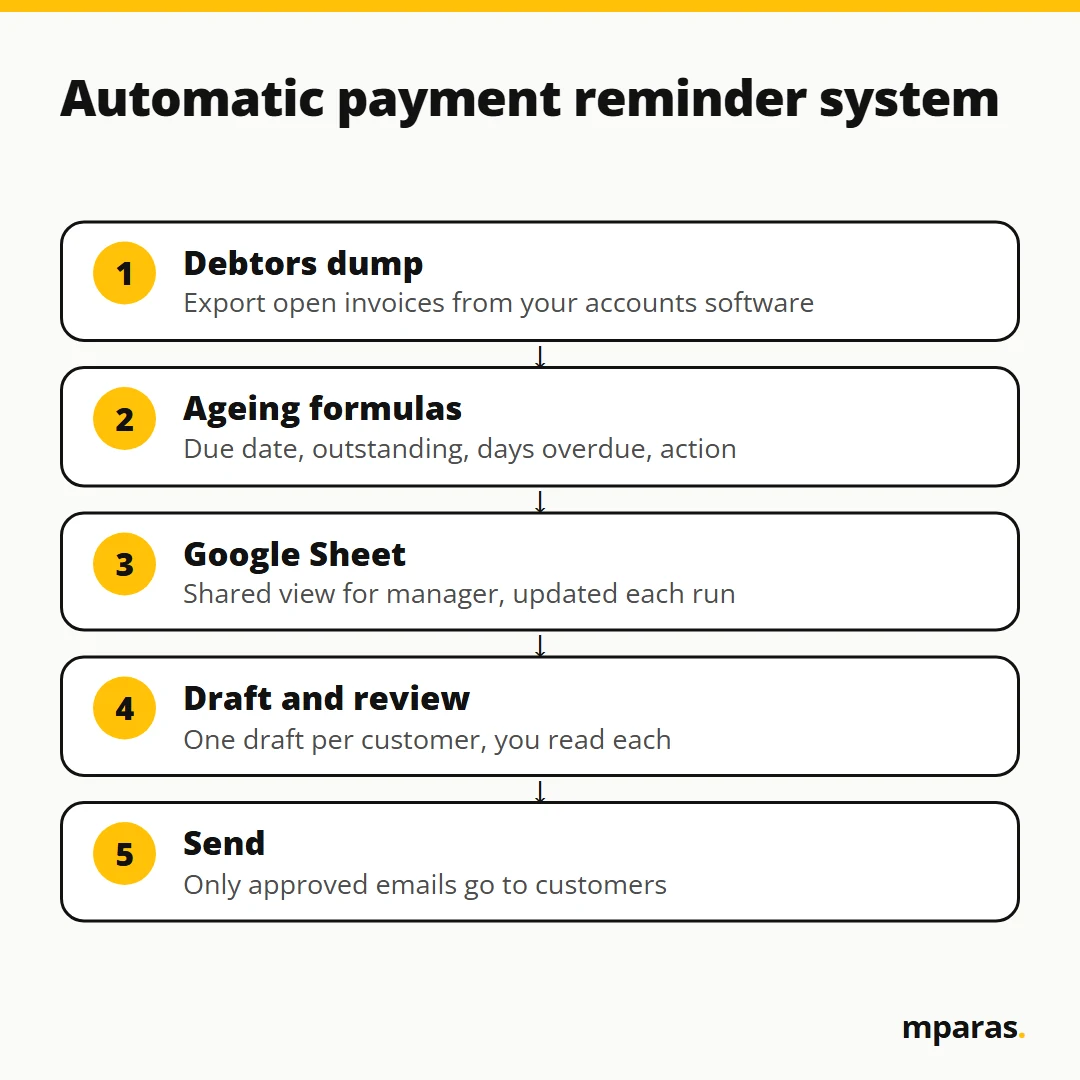
If your team still chases every debtor by phone, WhatsApp and one-by-one emails, this article is for you. Let me show you how to set up an automatic payment reminder email system using a Google Sheet and a small Google Apps Script. The sheet calculates who is overdue and by how many days. The script drafts one polite reminder per customer. And you review every draft before anything goes out.
Why debtors pay late (and why manual follow-up does not scale)
You all know the story. The company makes a sale, say Rs 1 crore, and the credit part of that sale gets stuck. Then the follow-up starts. Sometimes we call, sometimes we message, sometimes we email: "Sir, paise de do." Sometimes the customer pays. Sometimes he does not, and then we have to escalate manually.
Why does this happen? Very often the customer is not refusing to pay. Nobody told him clearly which invoices are due, for how much, and since when. With, say, 40 customers and 300 open invoices, nobody in your team can send that clear message to everyone, every week. The follow-up becomes irregular, so the payment becomes irregular.
Same steps, same data, every day. That is exactly the work we should automate.
The ageing sheet: what data you need
Before any email, you need a clean debtors ageing. Start with the dump you already have from your accounting software. In my example file the columns are: customer, GST, state, bill number, bill date, credit period, bill amount, amount received, contact person, mobile and email.
What is missing? The due date. How many days the bill is overdue. How much is still outstanding. We add these as formula columns. Here is the layout I use in the Google Sheet (tab name Receivables Ageing):
| Column | Field | Formula (row 2) |
|---|---|---|
| A to G | Customer, Email, Bill No, Bill Date, Credit Days, Bill Amount, Received | From your dump |
| H | Due Date | =D2+E2 |
| I | Outstanding | =F2-G2 |
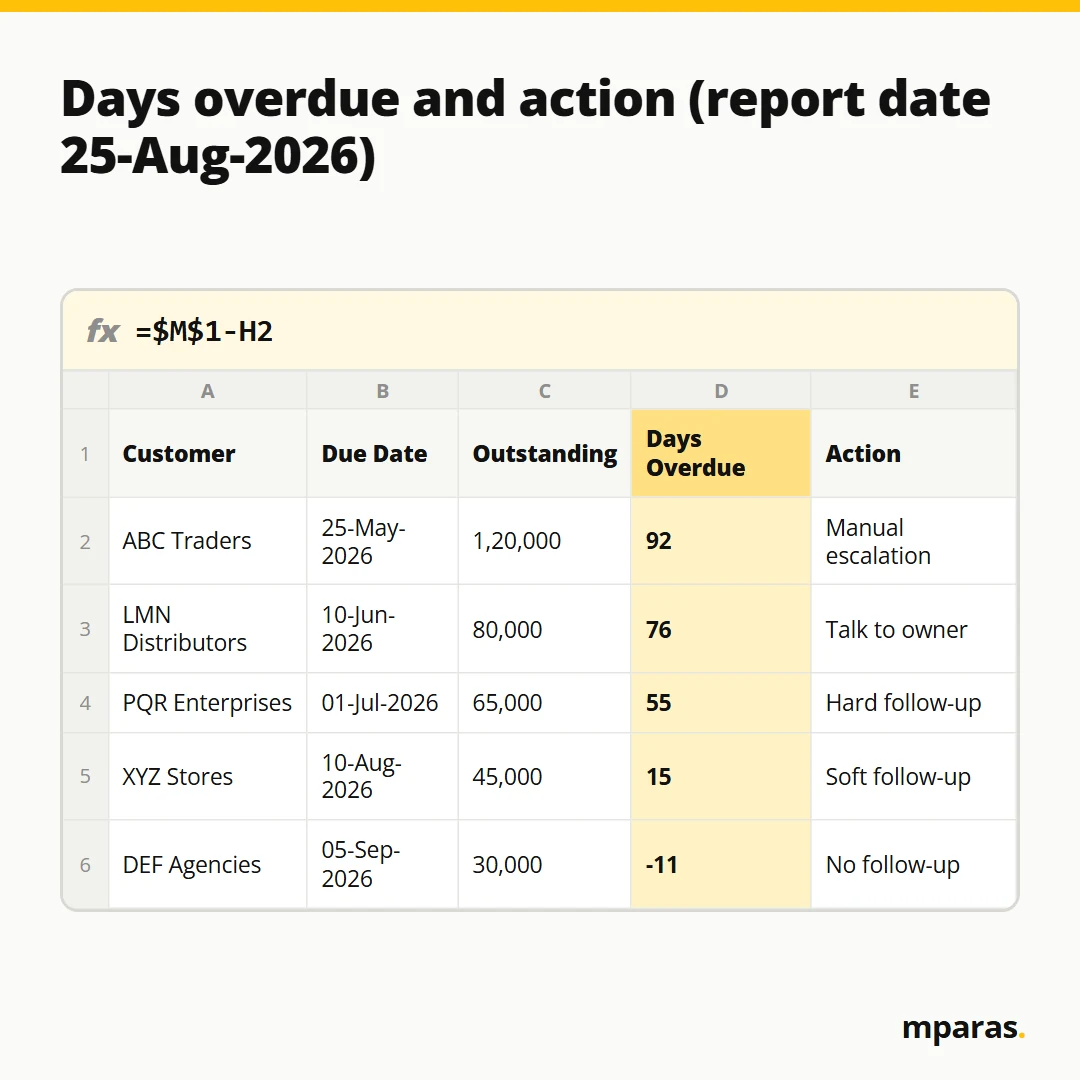
| J | Days Overdue | =$M$1-H2 |
| K | Action | See below |
Cell M1 holds the reporting date. Keep =TODAY() there for a daily run, or type a fixed date for month-end. A negative number in column J simply means the bill is not yet due.
The action column: decide the follow-up by days
Every company has its own policy, so write your own logic. Mine has four brackets: 0 to 30, 31 to 60, 61 to 90, and above 90 days. Each bracket gets one action:
- Settled or not yet due: no follow-up
- 0 to 30 days overdue: soft follow-up
- 31 to 60 days: hard follow-up
- 61 to 90 days: talk to the owner
- Above 90 days: manual escalation
In column K:
=IF(I2<=0,"No follow-up",IF(J2<=0,"No follow-up",IF(J2<=30,"Soft follow-up",IF(J2<=60,"Hard follow-up",IF(J2<=90,"Talk to owner","Manual escalation")))))
Check it with one row. Due date 25-May-2026, reporting date 25-Aug-2026. Days overdue = 92. The formula skips every condition and lands on "Manual escalation". Correct.
Test the numbers before you trust them
However smart it looks, always check the work done on your data. When I tested my version, I put a sum on top of the outstanding column in the source file and in the output. Both showed Rs 38 lakh 74 thousand. Then I summed the days overdue on both sides. Both showed 2,983. Only then did I move to emails.
Payment reminder email format: one customer, one email
A customer with five open bills should not get five emails. So the first rule: one customer, one email, with all overdue invoices summarised in a small list and one total at the bottom.
The second rule: the language must change with the bracket.
Soft reminder (0 to 30 days)
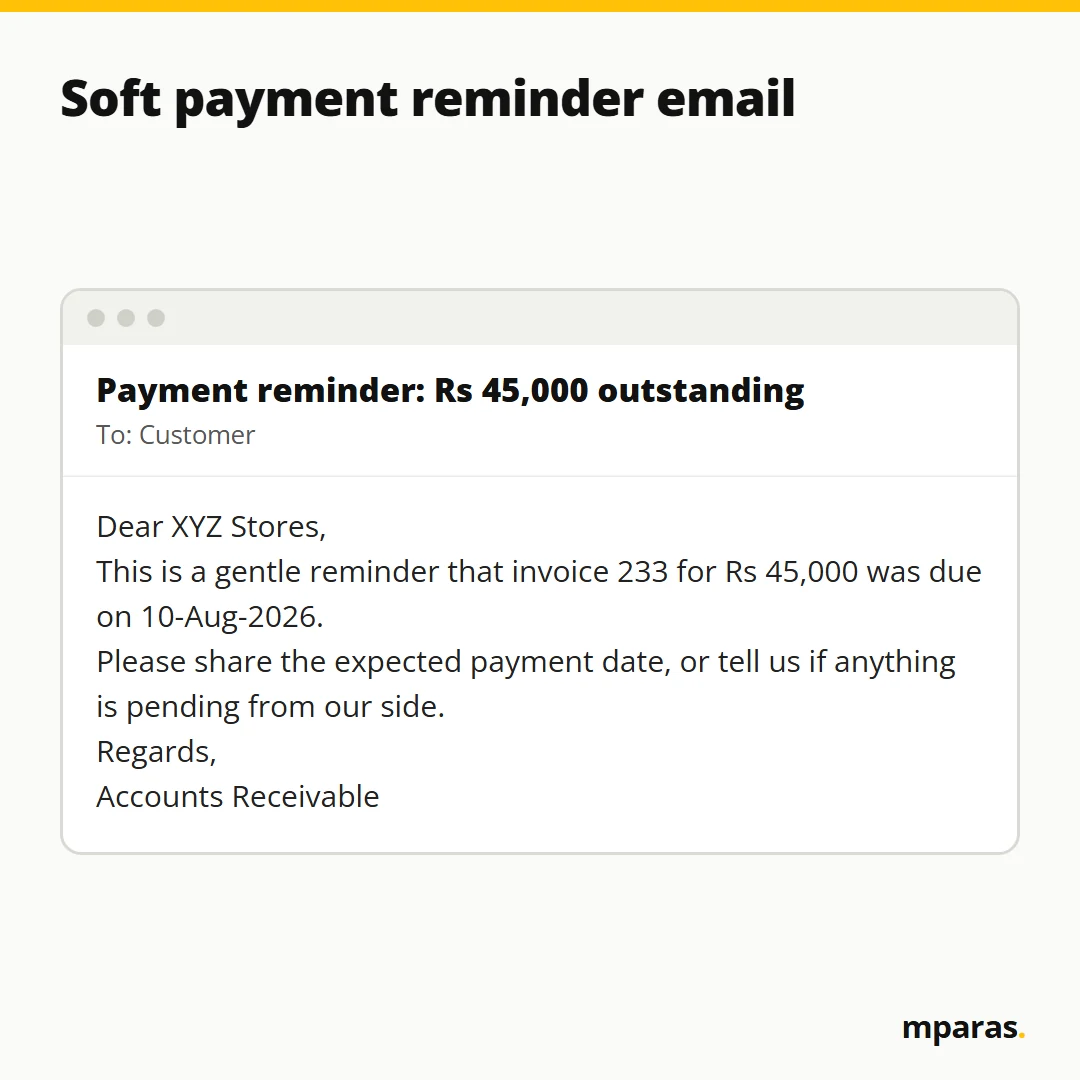
Polite and short. Invoice numbers, due dates, amounts and total. Ask for the expected payment date, and give the customer an easy way to raise an issue: "let us know if anything is pending from our side."
Hard reminder (31 to 60 days)
Still professional, but firmer. "Immediate action required" in the subject is fine.
Above 60 days: do not automate the customer email
At 61 to 90 days, the owner should call. Above 90 days, the email goes to your internal team or lawyer, not to the customer. When I built this, the AI itself suggested keeping manual escalation internal only, so the tool never sends a legal escalation email to a customer by accident. I agreed immediately.
How to send an automatic payment reminder email from Google Sheets
In my course I build this as an offline tool that creates the ageing, writes it to a Google Sheet, and then sends emails through Google Apps Script. If you want to start today with only a Google Sheet, the logic is the same.
What is Google Apps Script? Think of a movie script: steps in a sequence. Apps Script is a code editor where you write steps and Google executes them, like "send this email".
- Put your ageing data in a Google Sheet with the columns above. Name the tab
Receivables Ageing. - Go to Extensions > Apps Script. Delete the sample code in
Code.gs. - Paste the script below and click Save.
- Click Run. Google will ask for permission. It may show a warning that the app is not verified. That is because it is your own script, not a published app. Go to Advanced, continue, and allow.
- Open Gmail > Drafts. You will see one draft per customer. Read each one, then send.
function createReminderDrafts() {
  const ss = SpreadsheetApp.getActiveSpreadsheet();
  const rows = ss.getSheetByName('Receivables Ageing').getDataRange().getValues();
  const tz = ss.getSpreadsheetTimeZone();
  const customers = {};

  for (let i = 1; i < rows.length; i++) {      // row 0 is the header
    const r = rows[i];
    const name = r[0], email = r[1], billNo = r[2];
    const dueDate = r[7], outstanding = r[8], days = r[9], action = r[10];
    if (action !== 'Soft follow-up' && action !== 'Hard follow-up') continue;

    if (!customers[email]) customers[email] = { name: name, hard: false, lines: [], total: 0 };
    const c = customers[email];
    c.lines.push(billNo + ' | due ' + Utilities.formatDate(dueDate, tz, 'dd-MMM-yyyy') +
                 ' | Rs ' + Math.round(outstanding) + ' | ' + days + ' days overdue');
    c.total += outstanding;
    if (action === 'Hard follow-up') c.hard = true;
  }

  for (const email in customers) {
    const c = customers[email];
    const opening = c.hard
      ? 'Our records show the invoices below are now well past their due date.'
      : 'This is a gentle reminder that the invoices below are now due.';
    const body = 'Dear ' + c.name + ',\n\n' + opening + '\n\n' + c.lines.join('\n') +
      '\n\nTotal outstanding: Rs ' + Math.round(c.total) +
      '\n\nPlease share the expected payment date, or tell us if anything is pending from our side.' +
      '\n\nRegards,\nAccounts Receivable';
    GmailApp.createDraft(email, 'Payment reminder: Rs ' + Math.round(c.total) + ' outstanding', body);
  }
}
Do not be scared of the code. You drive a car without knowing how every part moves. Same here. Treat it as a black box: check your input, check your output. If you get an error, copy it into ChatGPT or Claude and ask it to fix it. Build, test, refine.
Why drafts, and not direct sending
Apps Script can also send directly with MailApp.sendEmail. I still prefer a review step. In my own build, the flow was: write to Google Sheet, prepare drafts, review each email, approve, and only then send. Nothing goes out before I see it. When I tested it, the first batch of emails showed the wrong amount, in every single email. I caught it, gave the error back to the AI, fixed it, and resent. Imagine if those had gone straight to customers.
Common mistakes to avoid
- One email per invoice. Group by customer. Always.
- Not checking totals. Sum outstanding and days overdue in source and output. They must match.
- Wrong reporting date. A month-end run with
TODAY()gives wrong days overdue. - Legal language to customers. Keep 90+ day escalations internal.
- Forgetting to redeploy. If you deploy the script as a web app and later change the code, create a new deployment version. Otherwise the old code keeps running. I made this mistake myself.
Keeping customer data safe
Customer names, GST numbers, mobiles and emails are sensitive. A few habits I follow:
- Never give real data to AI. When I ask AI to build the tool, I give it a dummy file. I replace customer names with ABC and XYZ, remove GST numbers, and dash out the emails.
- Prefer offline tools. My ageing tool runs fully offline in Chrome. No server, no API, so the data stays on my computer until I write it to my own Google Sheet.
- Use a private connection key. If the offline tool talks to your sheet through a web app, protect it with a key only you know.
FAQs
Can Google Sheets send payment reminder emails automatically?
Yes. Google Apps Script, which is free with your Google account, can read the sheet and send or draft emails through Gmail. You run it with one click whenever your ageing is updated.
What is the best payment reminder email format?
Short and specific: customer name, a one-line opening, a list of invoice numbers with due dates and amounts, the total outstanding, and a request for the payment date. Add a line asking if anything is pending from your side.
How do I calculate days overdue in Google Sheets?
First get the due date with =BillDate+CreditDays. Then subtract it from the reporting date, like =$M$1-H2. A negative result means the bill is not yet due.
Should I send reminders without reviewing them?
I would not. Create drafts first and read them. One wrong amount or one wrong customer can damage a relationship that took years to build.
Do I need to know coding to do this?
No. You need clarity on your input, your logic and your expected output. AI can write the script. Your job is to test that the output is correct.
Related reading: Nested IF Formula in Excel: IF, AND, OR for Accountants and ChatGPT for Accountants: How It Works and How to Use It Safely.
Start with one small fix
You do not need the full system on day one. Add the due date, days overdue and action columns to your ageing this week. That alone tells you who to chase first. To see where AI can save you time in your own work, take the free 2-minute AI test. To build the complete customer collection system with me, from ageing MIS to Google Sheet to reviewed reminder emails, it is a full project inside the AI in Finance course.
Stop doing finance work by hand.
Build your own AI tools for collections, invoices and reports. No coding. In Hinglish, taught by a CA.
- 27 chapters, 15+ real tools
- Lifetime access, GST invoice
₹2,499 GST included
Buy the course See what's inside or take the free 2-minute AI test
Comments
No comments yet. Ask a question or share how you'd use this.